
Last updated: 2026-07-15
Enterprise organizations can sign in with SAML 2.0 through Okta, Azure AD / Entra ID, or any standards-compliant identity provider.
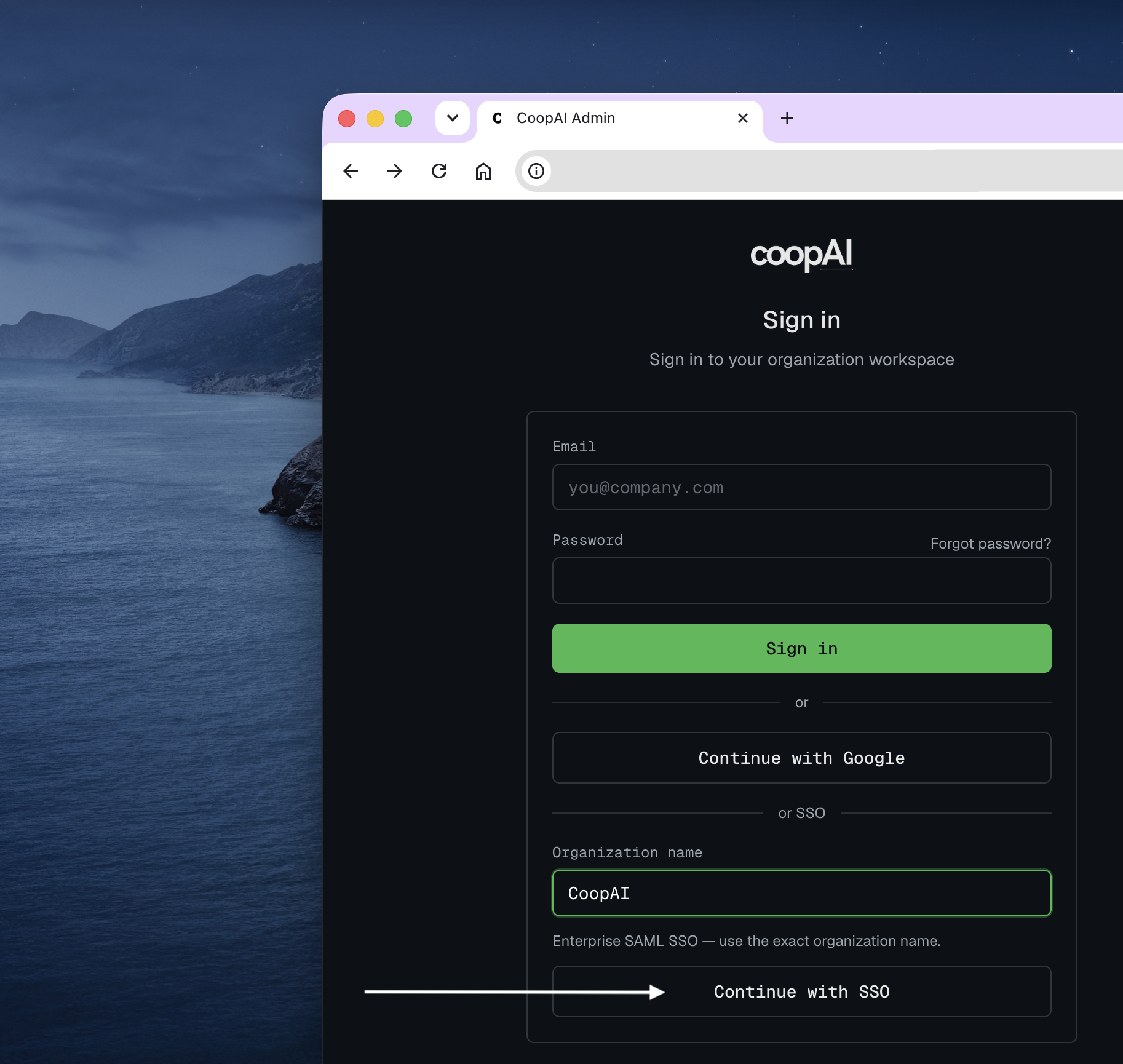
Who this page is for: Org admins and IT configure SAML in the admin portal. End users sign in through the admin portal or VS Code extension. Coop operators (hosted support or self-hosted deployers) manage server-side settings — see Enterprise deployment — SAML SSO.
On this page
- Who can configure SSO
- Sign-in surfaces
- Service provider (Coop) values — share with your IdP admin
- IdP requirements
- Configure in admin portal
- IdP setup guides — Okta · Azure AD / Entra ID · Generic SAML
- Enforce SSO-only sign-in
- Known limits
- User lifecycle
- Troubleshooting
Who can configure SSO
| Role | Access |
|---|---|
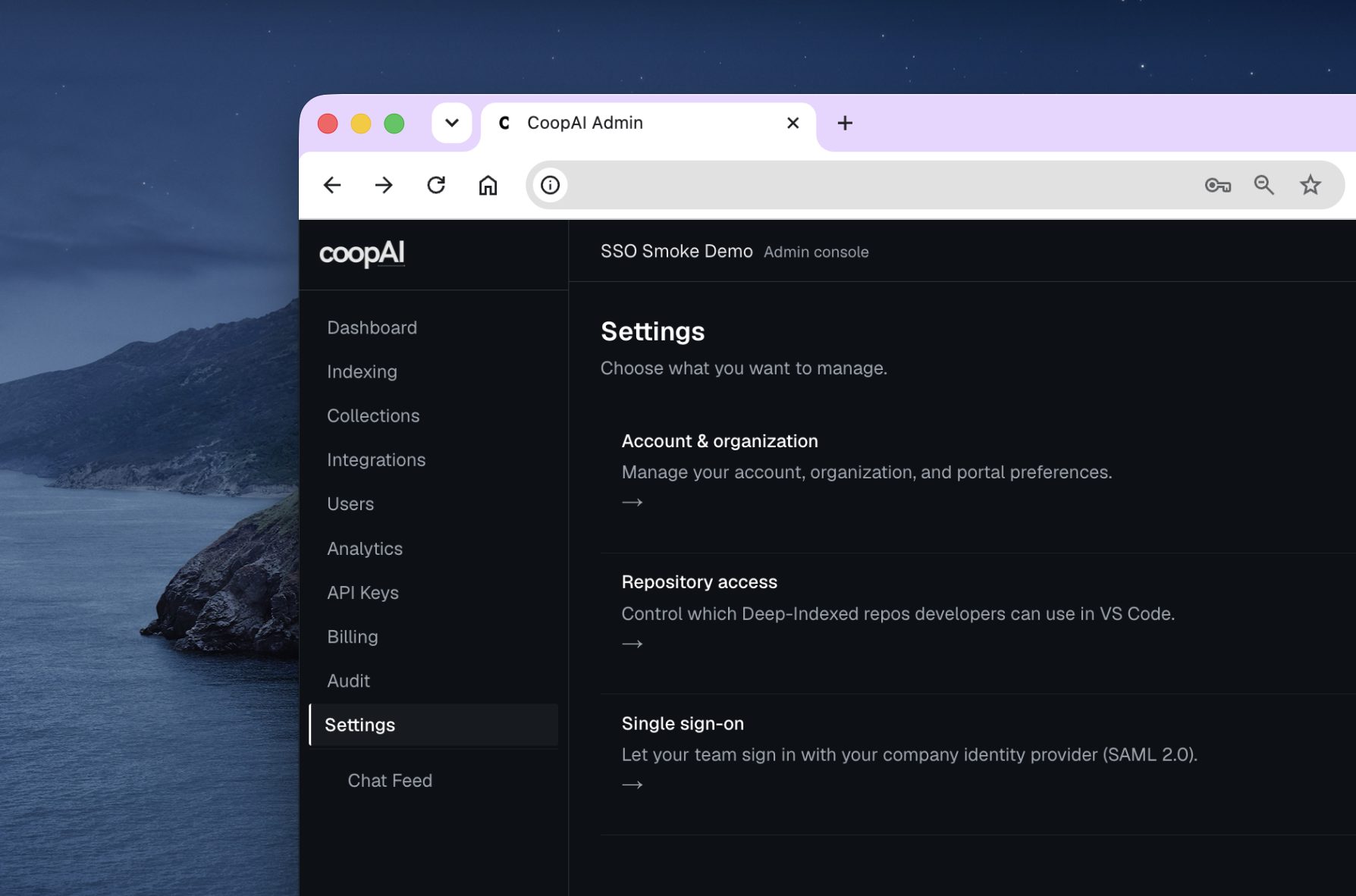
| Org admin / owner | Admin portal → Settings → Single sign-on (/settings/single-sign-on) |
| Coop operator | Server env vars and post-deploy validation — Enterprise deployment — SAML SSO (support-led onboarding available) |
SSO is available on the Enterprise plan only.
Sign-in surfaces
| Surface | Path |
|---|---|
| Admin portal | admin.coop-ai.dev/login → enter Organization name → Continue with SSO (inline on the login page) |
| VS Code extension | Settings → Account → enter Organization name → Sign in with SSO → browser handoff |
After a successful SAML assertion, Coop issues a session token and redirects back to the admin portal or extension. Extension sign-in opens your system browser; VS Code completes automatically when you return.
Not supported as a web login: coop-ai.dev/login opens the VS Code extension. SSO is on the admin portal and in the extension, not as a form on the marketing site.
How SAML setup works (two directions)
SAML needs a trust handshake in both directions. In admin Settings → Single sign-on, choose your provider first — field labels then match that IdP’s console.
| Step in admin UI | Direction | Why it’s required |
|---|---|---|
| 1. Copy into … (Okta / Entra / IdP) | Coop → IdP | Tells Okta/Entra where to POST the assertion (ACS / Reply URL) and who Coop is (Entity ID / Audience). Without this, the IdP cannot complete login. |
| 2. Paste from … | IdP → Coop | Tells Coop which IdP to trust (issuer, SSO URL, signing certificate). Without this, Coop cannot validate assertions. |
| 3. Sign-in policy | Coop only | Optional until SSO works — then you can require SSO and block password/Google. |
Section 1 is not optional. Docs and the admin panel show the same Coop URLs because self-hosted deployments use different hostnames — always prefer the values shown in your admin portal over hard-coding examples.
Service provider (Coop) values
These are the Section 1 values: copy from Coop into your IdP. Open admin portal → Settings → Single sign-on — the panel lists them for your deployment and offers Download metadata.
Hosted Coop examples:
| Purpose | Hosted Coop URL |
|---|---|
| Assertion callback (ACS / Reply / SSO URL) | https://api.coop-ai.dev/v1/auth/saml/callback |
| SP entity / audience / identifier | https://api.coop-ai.dev/v1/auth/saml/metadata |
| Metadata URL (optional) | https://api.coop-ai.dev/v1/auth/saml/metadata (Enterprise admin; may require sign-in) |
Okta field names (Section 1 labels in admin):
| Coop value | Paste into Okta as |
|---|---|
| ACS / callback URL | Single sign-on URL |
| Entity ID | Audience URI (SP Entity ID) |
Microsoft Entra field names (Section 1 labels in admin):
| Coop value | Paste into Entra as |
|---|---|
| ACS / callback URL | Reply URL (Assertion Consumer Service URL) |
| Entity ID | Identifier (Entity ID) |
Self-hosted deployments use your API hostname instead — your Coop operator configures the server; org admins copy the resulting SP values from the admin portal.
IdP requirements
- SAML 2.0 with signed assertions (SHA-256)
- Email attribute in the assertion, or an email-format NameID
- SP-initiated login (Coop redirects users to your IdP)
Coop uses a single service provider for all Enterprise tenants. Your org is resolved from RelayState at callback time.
Configure in admin portal
Sign in to the admin portal as an org admin on an Enterprise plan. Open Settings → Single sign-on (/settings/single-sign-on).
- Choose Provider (Okta, Azure AD / Entra ID, or Generic SAML 2.0) — labels update to match that console.
- Section 1 — Copy into your IdP: copy ACS / Entity ID (names match your provider) into the IdP SAML app. See Service provider (Coop) values.
- Section 2 — Paste from your IdP: paste issuer/SSO URL/certificate (provider-named fields) into Coop → check Enable SSO → Save SSO.
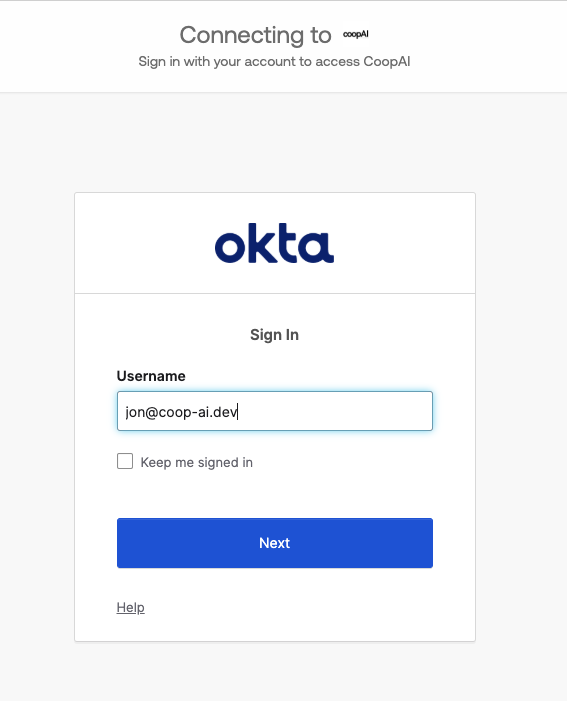
- Click Test connection — Coop opens your IdP, validates the SAML response, and returns a pass/fail result on this page. It does not replace your admin session or sign you in as another user.
- Section 3 — Sign-in policy: when the connection test passes, enable Require SSO (blocks password and Google at login and refresh; revokes existing non-SAML sessions after confirm). End users then use Continue with SSO on the login page.
Provider-specific notes
Okta
- Create a SAML 2.0 application.
- From Coop Section 1, paste Single sign-on URL and Audience URI (SP Entity ID) into Okta Configure SAML.
- Set Name ID format to EmailAddress and Application username to Email.
- From Okta Sign On → View SAML setup instructions, paste into Coop Section 2: Identity Provider Issuer, Identity Provider Single Sign-On URL, X.509 Certificate.
- Assign users in Okta → Coop Save SSO → Test connection.
Azure AD / Entra ID
- Create an Enterprise application → Create your own application → Integrate any other application (non-gallery).
- Single sign-on → SAML → Basic SAML Configuration.
- From Coop Section 1, paste Reply URL (Assertion Consumer Service URL) and Identifier (Entity ID) into Entra.
- Attributes & Claims — ensure email is sent (
user.mail; NameID email format preferred). - Assign users under Users and groups.
- From Entra, paste into Coop Section 2 — do not swap these two URLs:
| Entra label | Example | Coop field |
|---|---|---|
| Microsoft Entra Identifier | https://sts.windows.net/{tenant-id}/ | Microsoft Entra Identifier |
| Login URL | https://login.microsoftonline.com/{tenant-id}/saml2 | Login URL |
If Test connection 404s on sts.windows.net, the Login URL field has the Identifier — swap them and save again.
- Upload the signing certificate (Upload file with Entra’s Certificate (Base64)
.cer— don’t double-click it on macOS). - Coop Save SSO → Test connection.
Generic SAML
Use the same Coop SP values from Section 1. Any IdP that signs assertions and sends a usable email claim works — paste that IdP’s entity ID, SSO URL, and signing certificate into Section 2.
Enforce SSO-only sign-in
In Settings → Single sign-on → Sign-in policy, enable Require SSO and confirm in the modal.
When enabled:
- Email/password and Google sign-in return
sso_requiredat login and on/v1/auth/refresh - Coop immediately revokes existing password and Google sessions and refresh tokens for your org; SAML sessions stay valid
- Org API keys (
coop_…) still authenticate automation endpoints — revoke keys for offboarded users
Use Test connection before enabling Require SSO. Real user sign-in is via login → Continue with SSO, not the settings test button.
To disable SAML while Require SSO is on, turn off Require SSO first — otherwise Save SSO returns sso_required_active.
User lifecycle
| Event | Behavior |
|---|---|
| First SAML login | Coop creates a user (JIT provisioning) with role member |
| Returning SAML login | Matched by IdP subject or email within the org |
| Offboarding | Deactivate via admin Users page (Reactivate on the same row restores sign-in). Or automation API POST /v1/auth/saml/offboard |
Invite links still work for orgs that allow password sign-in. SSO-only orgs should provision users through the IdP.
API reference
Admin and automation endpoints are documented in API reference — SSO.
| Endpoint | Method | Purpose |
|---|---|---|
/v1/sso/config | GET | Read IdP config and SP details (org admin; org API key allowed) |
/v1/sso/config | PUT | Save IdP config (org admin; org API key allowed) |
/v1/sso/policy | GET | Read sign-in policy (any org member) |
/v1/sso/policy | PUT | Update requireSso, allowPassword, allowGoogle (org admin) |
/v1/auth/saml/start?org={name} | GET | Public SSO entry (extension + admin) |
/v1/auth/saml/callback | POST | IdP assertion callback (browser POST) |
/v1/auth/saml/metadata | GET | SP metadata XML (Enterprise bearer) |
/v1/auth/saml/offboard | POST | Deactivate users by IdP subject |
Troubleshooting
See SSO troubleshooting for the full error code table, SP URL fixes, and known limits.
Quick reference:
| Error | Fix |
|---|---|
sso_not_configured | Save SSO in admin Settings and ensure Enable SSO for this organization is checked |
sso_required | Use SSO sign-in — extension: Sign in with SSO; admin portal: Continue with SSO |
sso_required_active | Turn off Require SSO before disabling SAML or unchecking Enable SSO |
saml_validation_failed | Check IdP cert expiry, clock skew, Entity ID / ACS URL mismatch |
admin_required | Only org admin or owner can read or save SSO config via API |
missing_org | Enter your organization name before starting SSO |
| Missing email in assertion | Map email attribute in IdP; NameID must be email if no attribute |
| SSO URLs unavailable | Coop operator: fix server configuration — Enterprise deployment — SAML SSO |
Known limits
| Limit | Detail |
|---|---|
| SP-initiated only | Login must start from Coop (admin Test connection, extension Sign in with SSO, or /v1/auth/saml/start) — IdP-initiated flows without RelayState fail |
| No SCIM | No automated user provisioning sync from IdP — first SAML login JIT-provisions a member; offboard via admin Users or POST /v1/auth/saml/offboard |
| 12-hour sessions, no refresh | SAML sessions expire after TTL (default 12h); users re-authenticate through the IdP |
| Shared service provider | One Entity ID and ACS URL per Coop deployment; org resolved via RelayState |
API keys bypass requireSso | Org API keys authenticate automation even when SSO is required — rotate or revoke for offboarded users. Password and Google sign-in and refresh are blocked. |
| ForceAuthn on every login | Coop sets ForceAuthn="true" on every SAML AuthnRequest; Azure AD also gets prompt=login so Microsoft must show an interactive sign-in challenge instead of silent SSO |
| No IdP single logout (SLO) | Signing out of Coop ends the Coop session only — it does not terminate your Okta/Azure browser session |
| No assertion replay cache | InResponseTo replay protection is disabled on multi-instance backends; signature and timestamp checks still apply |
| IdP cert storage | X.509 signing certificates are stored in plaintext in org_sso_config (unlike encrypted OAuth integration tokens) |
Security notes
- Session tokens are hashed server-side; SAML assertions are validated with your IdP signing certificate
- Post-login redirects with session tokens only go to Coop surfaces (admin portal, marketing site, and
vscode:/vscode-insiders:extension callbacks) — not arbitraryhttps://hosts - SSO sessions default to 12 hours; re-authenticate through your IdP when expired — no refresh token
- Audit events:
auth.saml.loginrecorded for each successful SSO sign-in
Details: Security architecture — SAML.
Next steps
- SSO troubleshooting — error codes and known limits
- Security architecture — data handling and compliance
- Admin portal — user management and audit log
- Enterprise deployment — self-hosted env vars