
Last updated: 2026-09-18
The admin portal at admin.coop-ai.dev is where org admins configure CoopAI for the whole organization. Invited developers also sign in here for workspace repos, usage, and chat feed.
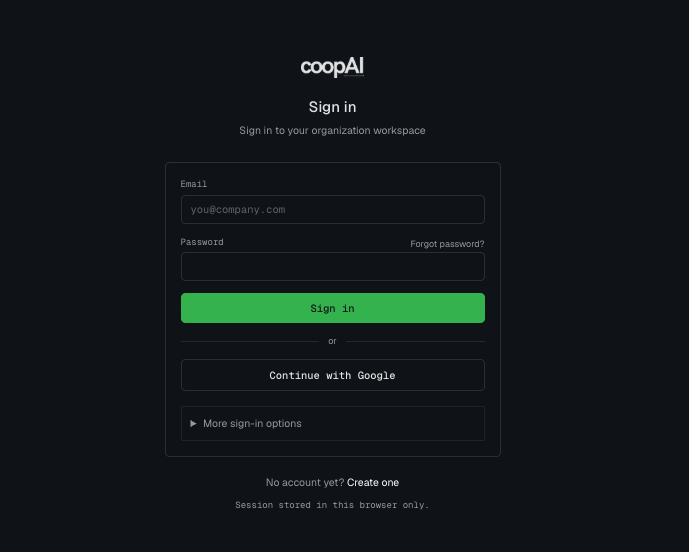
Sign in
- Browser → admin.coop-ai.dev/login
- Sign in with your email and password, or click Continue with Google.
- Enterprise SAML: enter your Organization name, then click Continue with SSO (inline on the login page — not in a collapsed section).
- Invited users: open the link in your invite email → set password and profile on
/accept-invite. - Success: dashboard loads with org name and integration status.
Accounts are created during free signup, Pro/Enterprise checkout, or admin invite. Use the same email you registered with.
Forgot your password? → admin.coop-ai.dev/forgot-password
Dashboard
Org admins see integration status, onboarding wizard, usage summary, and plan details.
Members (developer role) see a welcome dashboard with assigned workspace repos, integration status (read-only), and links to install the VS Code extension.
Connect integrations
Go to Integrations to connect tools org-wide. See Connect integrations for the full checklist.
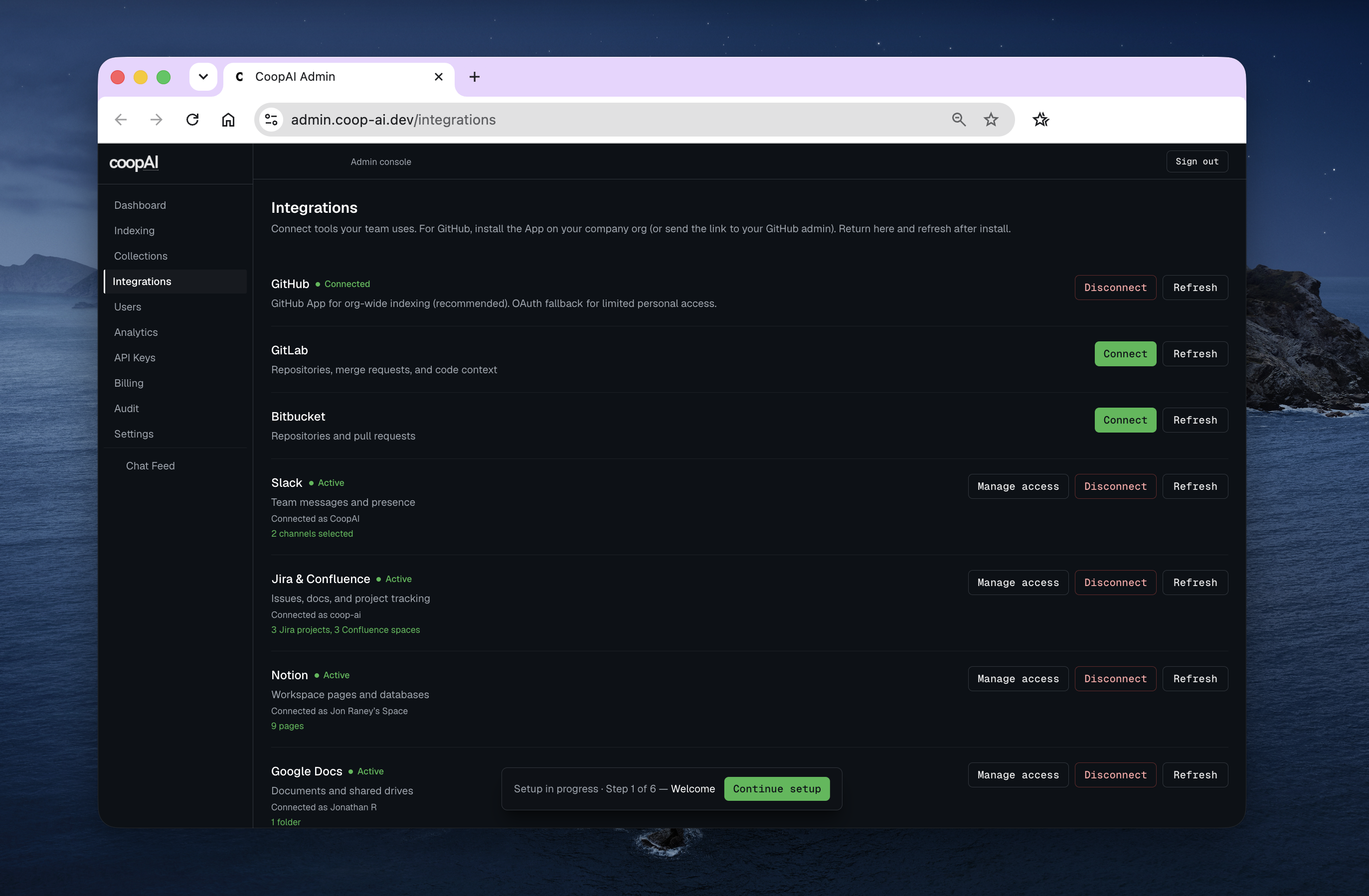
Each integration shows Connected or Active when OAuth completes. Use Manage access to set scope (channels, projects, pages). Disconnect and Refresh are on every card.
GitHub (all plans)
Company repos live under a GitHub Organization. Installing the Coop GitHub App requires a GitHub org owner — not every Coop admin has that access.
| Role | Action |
|---|---|
| Coop org admin | Connect (GitHub App) if you are also the GitHub org owner, or Send link to GitHub admin |
| GitHub org owner / IT | Opens the link → installs on the company org → selects repositories |
| Developers | Sign in to Coop only — they use the admin’s cloud index |
The portal shows Waiting for GitHub until the install callback completes, then Connected. If the App is already on GitHub but Coop lost the link, click Connect again — Coop may relink automatically.
Limited connect (OAuth) is available when the server has OAuth configured and the org owner cannot install the App. It indexes repos the connecting user can read — not full org estate.
In production mode, developers cannot paste OAuth tokens in VS Code — admins connect once here.
Indexing
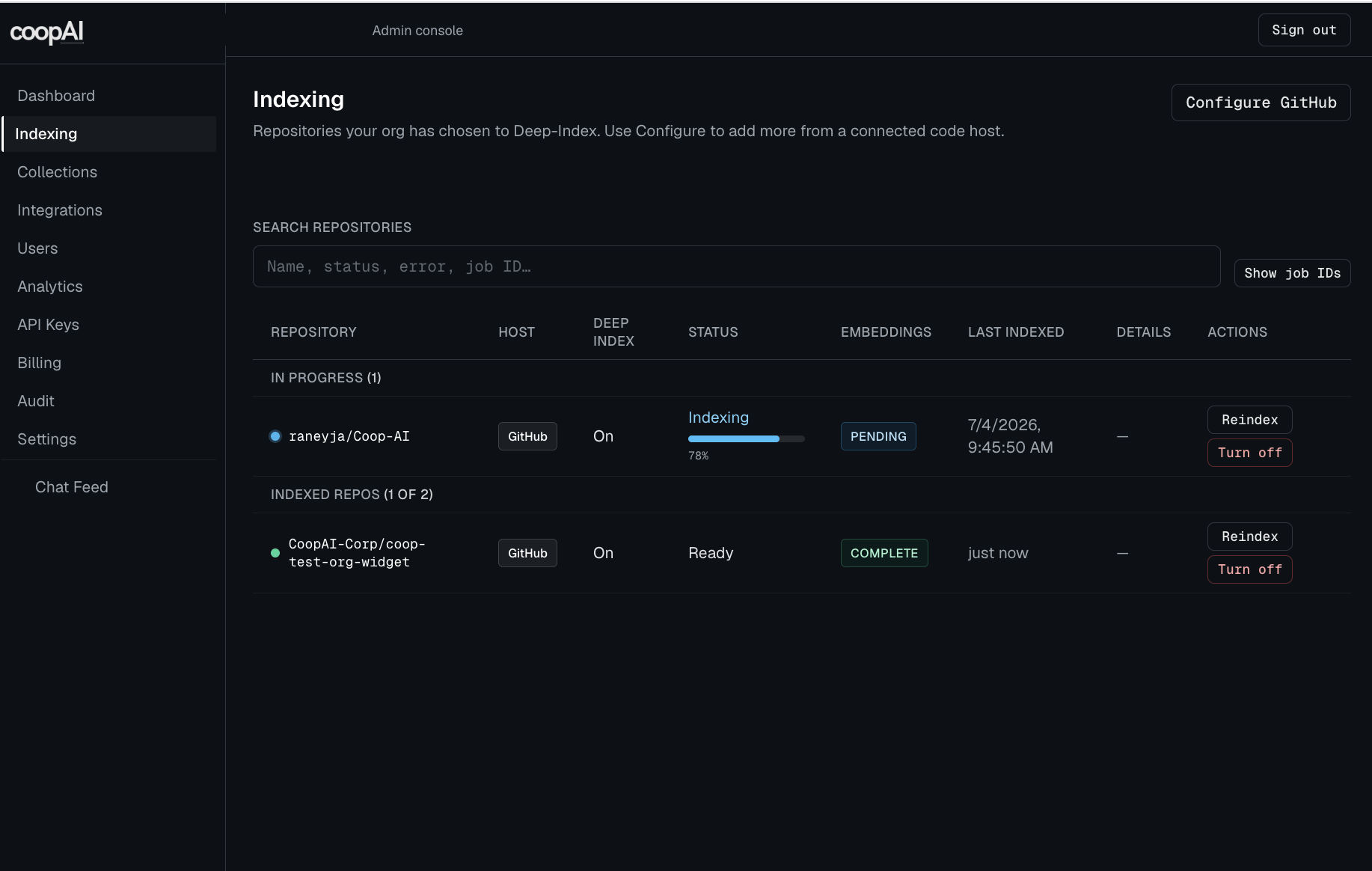
Indexing (admin only) — enable Deep-Index on repos discovered after code-host connect. All plans use the same cloud index; free orgs are limited to 3 Deep-Indexed repos org-wide. Pro orgs have unlimited indexing. Developers pick workspace repos from this catalog (up to 3).
Integration scope
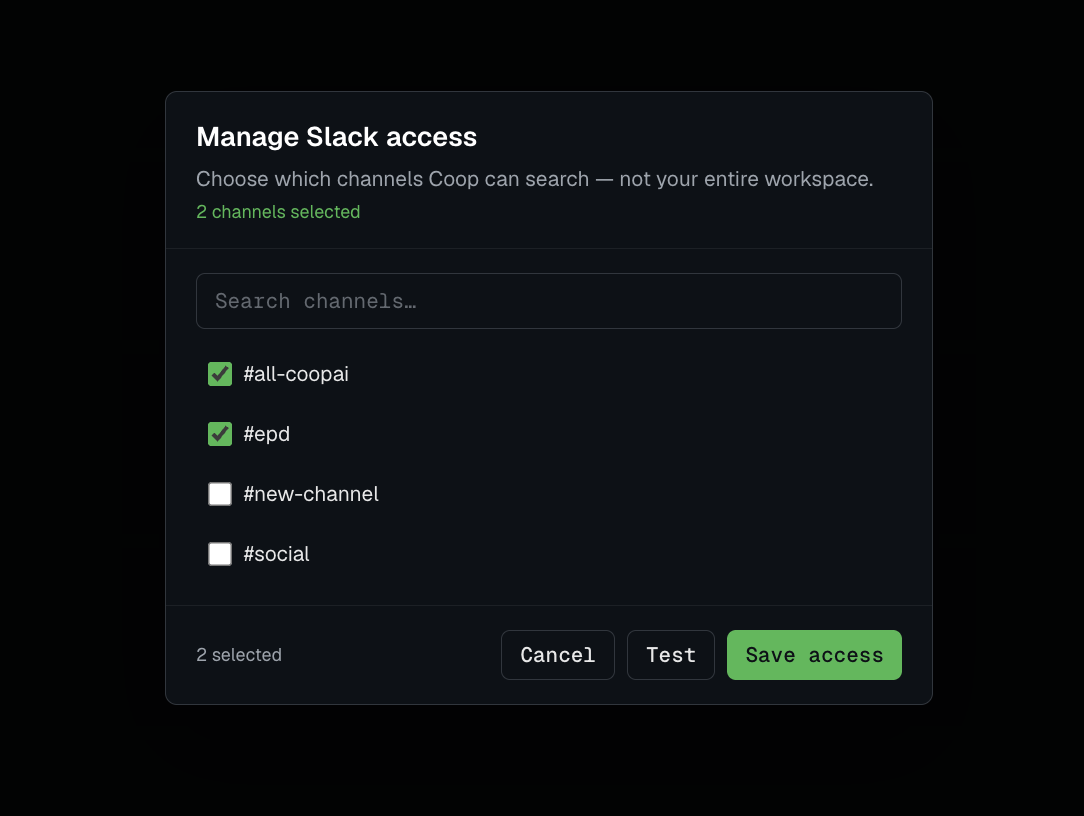
Enterprise orgs configure which Slack channels, Jira projects, Notion workspaces, etc. Coop can access. See Integration scope.
Settings
Settings (/settings) is a hub for org and account configuration. Collections and automation API keys live here too — they are not in the sidebar.
| Section | Path | Who |
|---|---|---|
| Account & organization | /settings/account | All members |
| Repository access | /settings/repository-access | Pro / Enterprise admins |
| Collections | /collections | Pro / Enterprise admins |
| API keys | /api-keys | Admins (CI and scripts — not sign-in) |
| Single sign-on | /settings/single-sign-on | Enterprise admins |
SAML SSO (Enterprise)
Org admins configure SAML 2.0 in Settings → Single sign-on:
- Copy Coop Service provider values (Entity ID, ACS URL) into your IdP
- Paste IdP Entity ID, SSO URL, and signing certificate → Save SSO
- Test connection, then enable Require SSO (confirmation modal) when ready
Full walkthrough: Single Sign On (SSO)
Users
Users page (admin only):
- Invite teammates by email (optional repo grants when per-user access mode is on)
- Assign roles (admin vs developer)
- Revoke access
Developers sign into the VS Code extension from Settings → Account — Continue with Google, two-step email sign-in, or Sign in with SSO. Not an automation API key.
Member pages
Developers invited to the org see:
| Page | Purpose |
|---|---|
| My Usage | Personal chat, completions, and event analytics |
| My Activity | Personal audit log |
| Chat Feed | Your own chats synced from the VS Code extension |
| Integrations | Read-only connection status |
API keys (automation only)
Settings → API keys (admin only) — for scripts, CI, and headless automation:
- Create labeled keys for automation pipelines
- Revoke compromised keys
- View last-used timestamps
API keys are not the primary sign-in method. Developers and admins sign in with email/password, Google, or SSO. Issue API keys only when a teammate needs programmatic access.
Billing
Billing page (Pro/Enterprise, admin only):
- View current plan (1 paid seat shows as Pro / Pro+ / Max; 2+ paid seats show as Team)
- Open Stripe customer portal for invoices and payment method
- Upgrade, or add a teammate / seats. The admin pays for every seat on the account.
Audit log
Audit page (admin only) records org actions: integration connect/disconnect, scope changes, user invites, API key creation.
First-time onboarding wizard
New orgs see a setup wizard (steps vary by plan):
| Plan | Typical steps |
|---|---|
| Free | Welcome → Connect → Index repos → Extension → Done |
| Pro / Enterprise | Welcome → Connect → Manage access → Invite team → Verify → Done |
Complete required steps before marking onboarding done.
Who can access the admin portal?
All org members can sign in. Admin pages (indexing, users, billing, audit, analytics) require role owner or admin (canInstallIntegrations: true). Developers use the VS Code extension for day-to-day work and the member pages above for usage and workspace repos.