
Last updated: 2026-07-07
After connecting an integration, Pro and Enterprise orgs configure scope — the allowlist of channels, projects, or workspaces Coop can read.
Why scope matters
Coop follows least-privilege access. Even with OAuth connected, Pro and Enterprise plans require explicit scope before Coop searches Slack messages or Jira tickets. Developer (free) orgs can use connected integrations without a separate scope step.
Admin portal — Manage access
- Browser → admin.coop-ai.dev/integrations
- Find the connected integration → Manage access
- Select allowed channels, projects, or folders
- Save access → Test
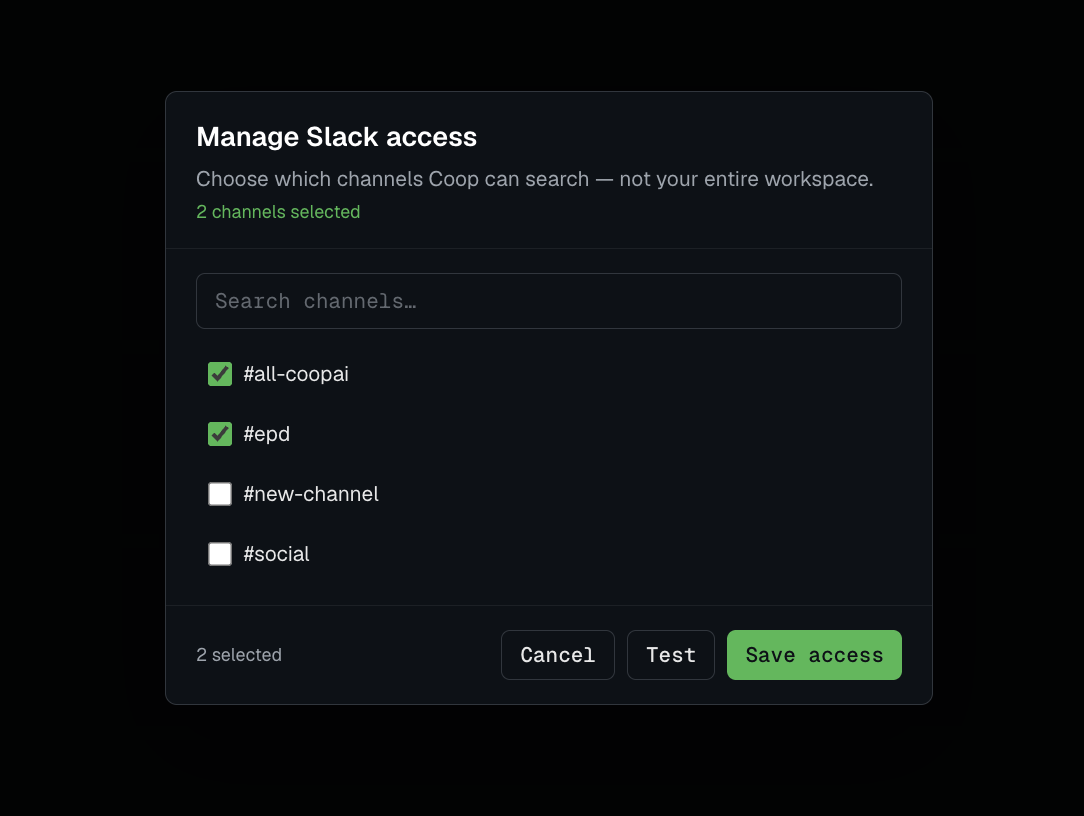
Success: Scope status shows Active (not just Connected).
Slack scope
Requires both OAuth connect and channel allowlist:
- Connect Slack (user + bot tokens)
- Manage access → select channels → Save
- Test — confirms search works in allowlisted channels
Private Slack channels require the Coop bot to be invited to those channels.
See Slack setup for required OAuth scopes.
Jira / Confluence scope
After Atlassian OAuth connect:
- Set Jira site URL and Confluence site URL in integration settings
- Manage access → select projects/spaces
- Save and test
Notion scope
Select workspaces and pages Coop can search. Re-connect if you add new top-level pages.
Google Docs scope
Scope to shared drives or folders. Revoke and re-connect at myaccount.google.com/permissions if you see insufficient scope errors.
Verify scope health
Admin portal integration cards show:
| Status | Meaning |
|---|---|
| Connected | OAuth complete, scope not yet configured |
| Active | Scope saved and tested |
| Needs reconnect | Token expired or scopes changed in vendor console |
Extension Settings → Tools shows read-only status for developers.