
Last updated: 2026-09-03
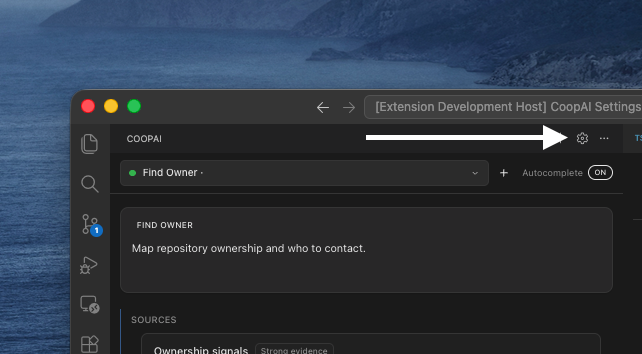
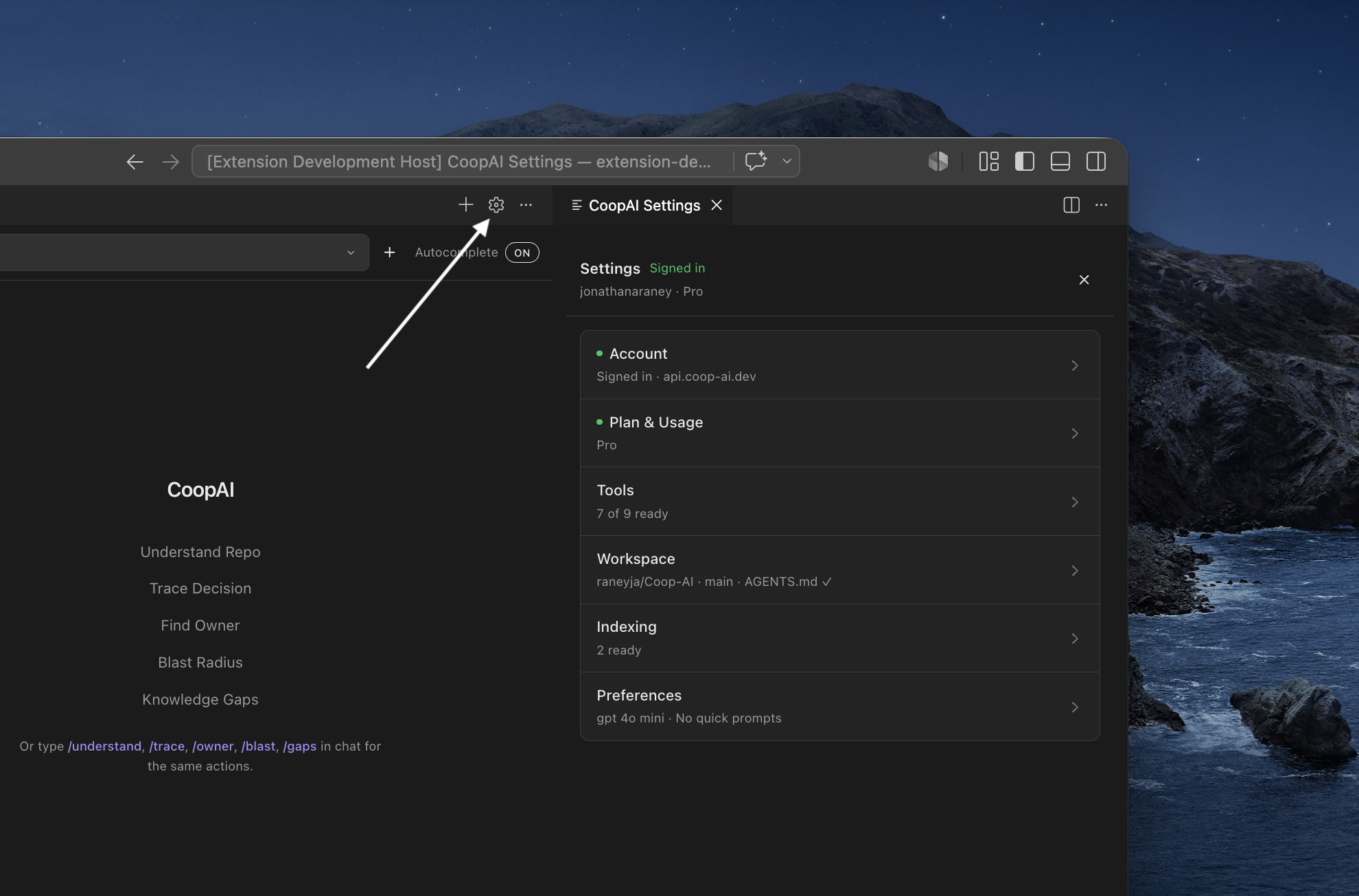
Open settings from the gear icon in the Coop sidebar title bar. Settings open in a dedicated editor tab — Account, Tools, Workspace, Indexing, and Preferences. You can also run CoopAI: Open Settings from the Command Palette.
Account
Sign in with your Coop account — the same credentials you use at coop-ai.dev/signup/free or the admin portal.
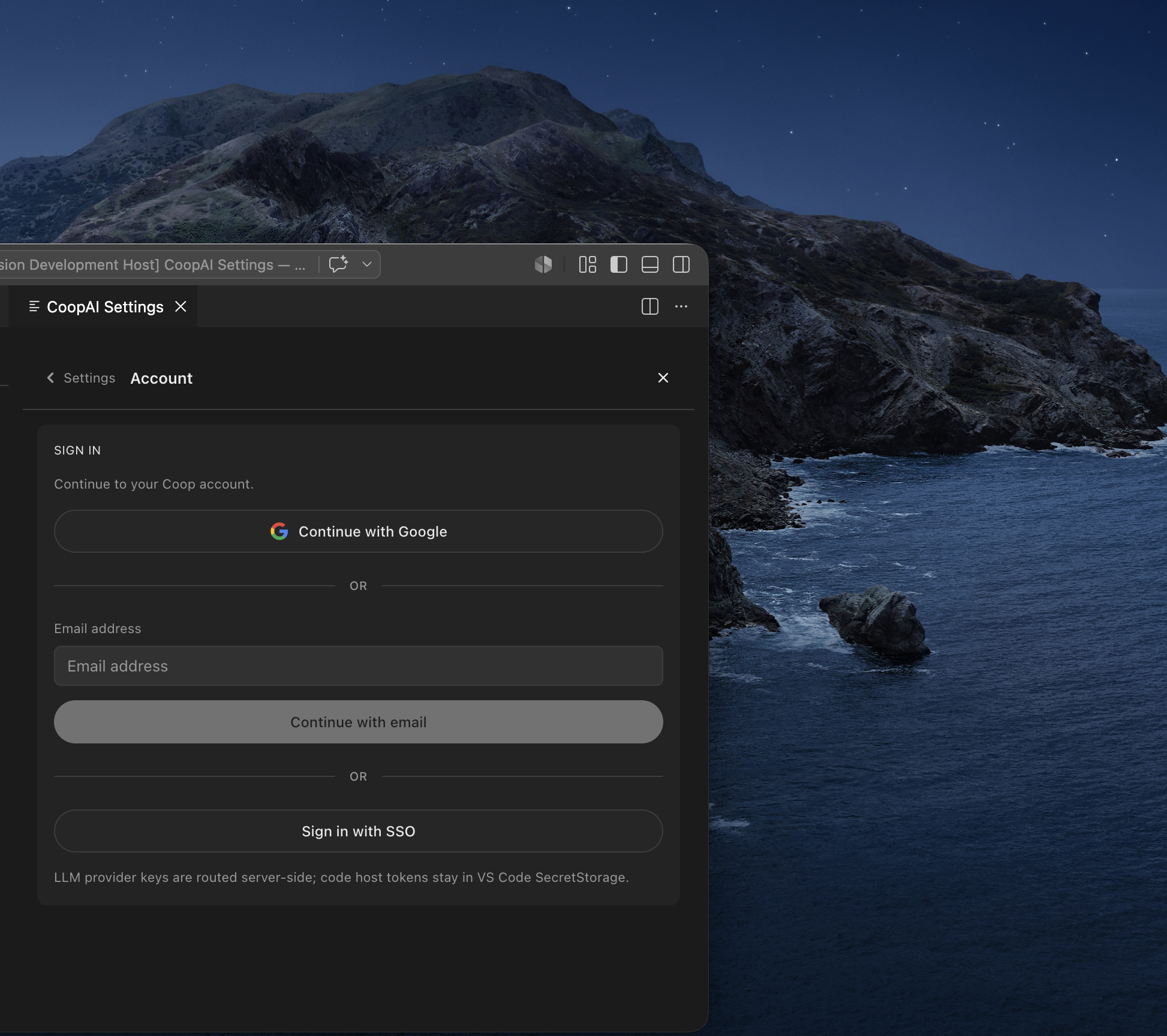
Sign-in options
Three paths on one screen, separated by or dividers:
| Path | What to do |
|---|---|
| Continue with Google | Click the top button (Google icon) |
| Continue with email | Enter email → Continue with email → password → Sign in |
| Sign in with SSO | Enter Organization name → Sign in with SSO → complete IdP sign-in in your browser |
Email sign-in is two steps:
- Enter your email and click Continue with email.
- Enter your password and click Sign in.
- Forgot password? resets your password. ← Use a different email returns to step 1.
Enterprise SSO
- Enter your Organization name (case-insensitive — must match your Coop org).
- Click Sign in with SSO.
- Your system browser opens for IdP login; VS Code shows a notice to complete sign-in there.
- When you return, Account updates with your org and plan.
If your org enforces SSO, password and Google sign-in are blocked — use SSO only.
If the browser redirect fails or you close the tab early, VS Code shows an error from the callback URL (?error=…&message=…). Common codes:
| Error | Fix |
|---|---|
sso_not_configured | Ask your admin to finish Settings → Single sign-on in the admin portal |
sso_required | Use Sign in with SSO — password and Google are disabled for your org |
email_not_verified | Verify your Google email address, then try Continue with Google again |
rate_limited | Too many sign-in attempts — wait ~15 minutes, then retry |
saml_validation_failed | IdP cert, clock skew, or SP URL mismatch — ask your admin to check IdP config |
missing_org | Re-enter your Organization name before Sign in with SSO |
| No session token | Complete IdP login in the browser; do not close the tab before redirect back to VS Code |
Full error table: SAML SSO troubleshooting.
Signed in
After sign-in, Account shows your org and plan summary and a Sign out button.
Forgot password? Use the link on the password step or coop-ai.dev/forgot-password.
Automation API keys
Not in the extension UI. For CI and scripts, create keys in the admin portal under Settings → API keys.
Tools
Shows connection status for code hosts and integrations.
| Mode | Behavior |
|---|---|
Production (coopAI.devMode: false) | Read-only status. Org admins connect in the admin portal. |
Developer (coopAI.devMode: true) | Paste PATs/tokens in VS Code SecretStorage for local testing. |
Supported tools: GitHub, GitLab, Bitbucket, Slack, Jira, Confluence, Notion, Google Docs. Microsoft Teams is coming soon.
Workspace
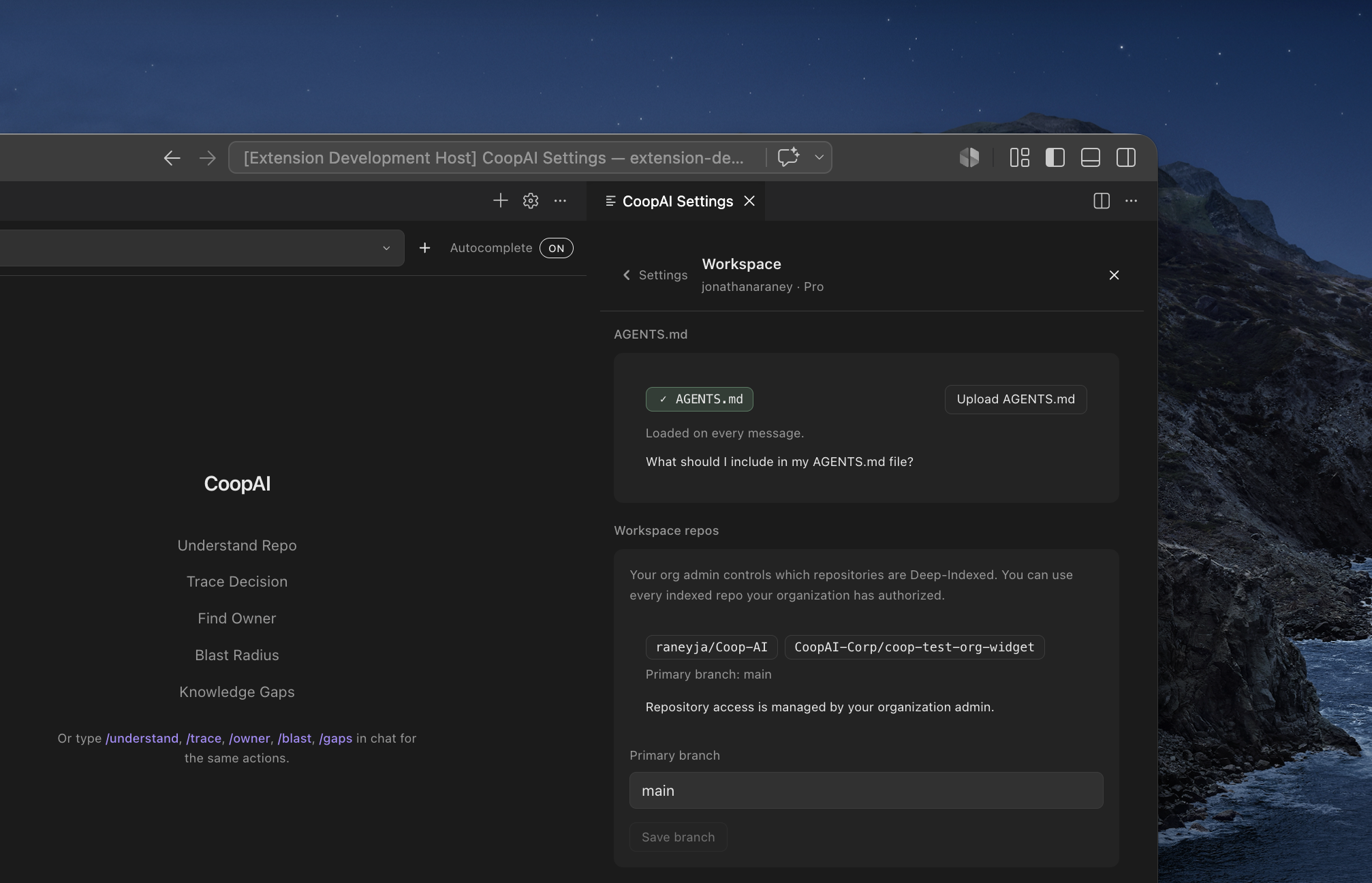
Pick indexed repos your org admin authorized and set your primary branch.
| Field | Purpose |
|---|---|
| Workspace repos | Deep-Indexed repos your org admin enabled (read-only list) |
| Primary branch | Default branch for repo-wide quick actions (e.g. main) |
| AGENTS.md | Project instructions loaded on every message |
Repo-wide quick actions need an explicit selection — Settings owner/repo alone is not enough:
| Action | How to unlock |
|---|---|
Understand Repo / /understand | Use repo on the repository in the Remote workspace picker. A file chip blocks this action (repo-wide only). |
| Find Owner / Knowledge Gaps | A file chip or Use repo |
See Owner's Manual — Understand Repo.
Preferences
Profile and chat defaults — moved out of Account:
| Item | Purpose |
|---|---|
| Timezone | Usage reset times and scheduling context in chat |
| Model & chat | What Auto uses, models by maker, Enable inline autocomplete |
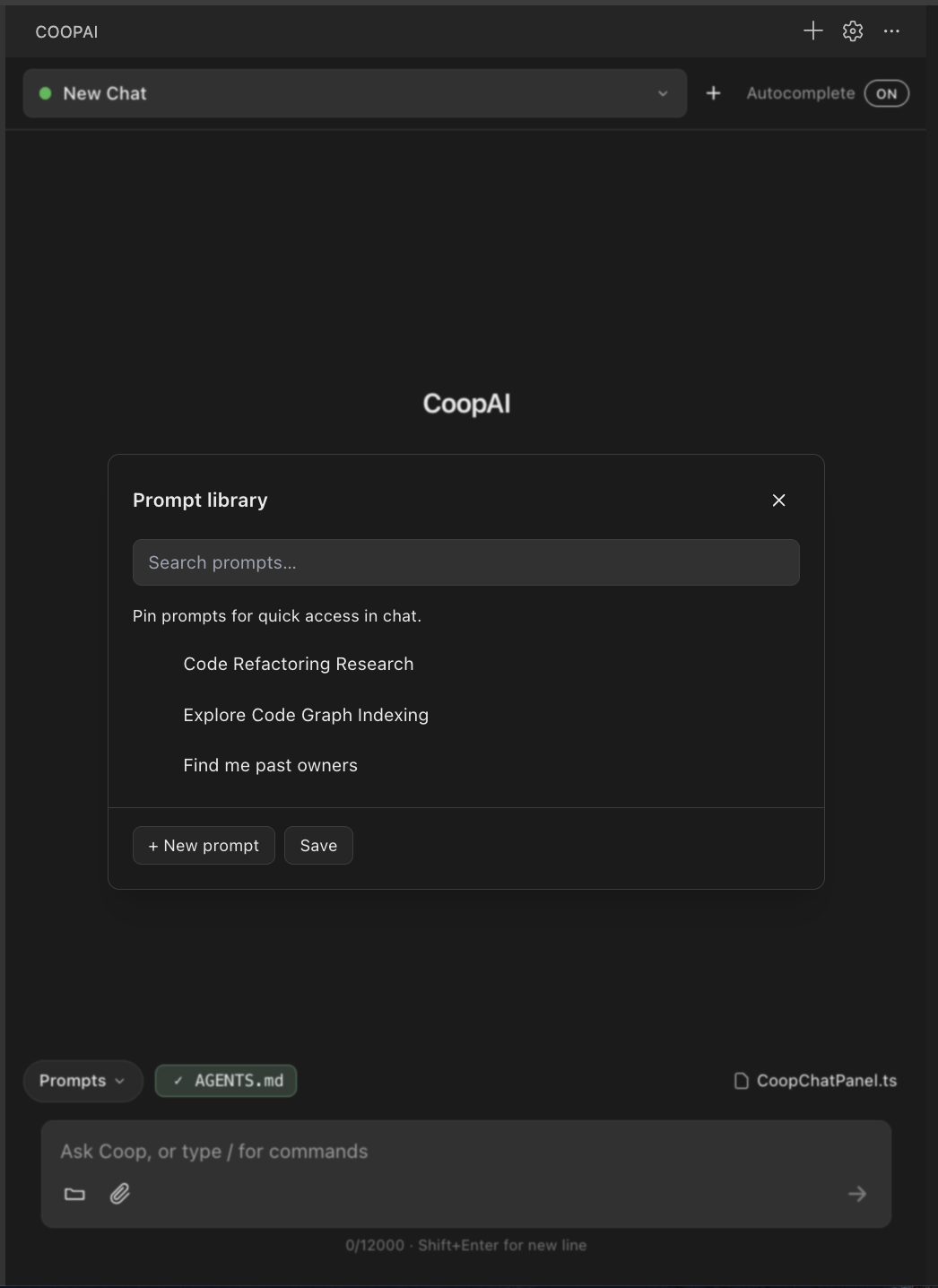
| Prompt library | Pin up to 5 prompts for the composer footer — see Prompt library |
The Preferences hub subtitle shows Assigned models plus autocomplete status.
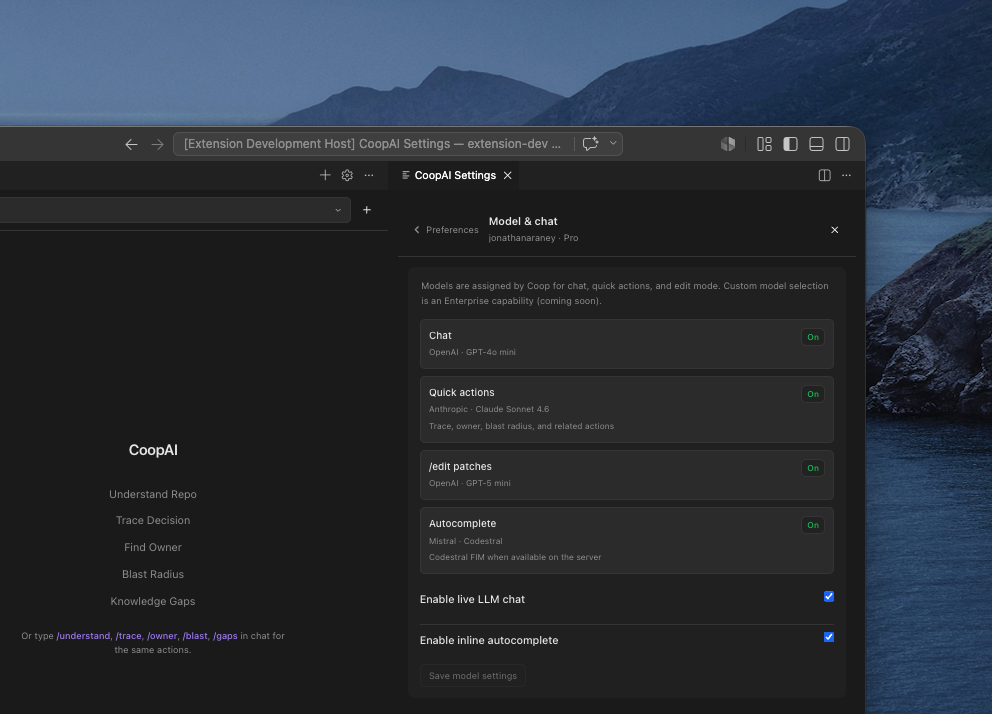
Model & chat
Preferences → Model & chat explains how models work. The page does not change when you pick a model in chat. There is no picker here — Pro, Pro+, Max, and Enterprise choose a model from the model menu in chat.
The page always shows:
- How Auto works
- What Auto uses (feature → model, with a link to the maker’s docs)
- Models you can pick, grouped by OpenAI, Anthropic, and Gemini (each linked to docs)
What you can change here:
| Toggle | Setting | Default |
|---|---|---|
| Enable inline autocomplete | coopAI.autocomplete.enabled (global scope) | false |
Click Save model settings to persist the autocomplete toggle. Chat, quick actions, and edit mode stay on.
Full table and routing details: Model assignments.
Autocomplete
Inline ghost-text completions are off by default. Turn them on from Preferences → Model & chat → Enable inline autocomplete → Save model settings. Autocomplete toggles persist at global (User) scope. See the full guide: Inline autocomplete.
| Setting | Default | Description |
|---|---|---|
coopAI.autocomplete.enabled | false | Enable inline ghost-text autocomplete (global scope) |
coopAI.autocomplete.trigger | auto | auto | manual | off — when to request completions |
coopAI.autocomplete.useFim | true | FIM segments for Codestral routing |
coopAI.autocomplete.useGraphContext | false | Indexed graph context (auto when Deep-Index is ready) |
coopAI.autocomplete.debounceMs | 300 | Ms after typing before auto-trigger (0–2000) |
coopAI.autocomplete.requestTimeoutMs | 1500 | Drop slow requests after this many ms (100–5000) |
coopAI.autocomplete.maxSuggestionLength | 200 | Max characters per suggestion (8–500) |
coopAI.autocomplete.showMultipleSuggestions | false | Cycle distinct alternatives with Alt+[ / Alt+]; near-duplicates stay one suggestion |
coopAI.autocomplete.projectImports | [] | Extra import paths to bias completions |
Autocomplete always uses Mistral Codestral and does not follow the model menu in chat. See Model assignments.
Command Palette: CoopAI: Trigger Inline Autocomplete, CoopAI: Show Autocomplete Help
Production vs developer mode
| Production | Developer mode | |
|---|---|---|
| Setting | coopAI.devMode: false | coopAI.devMode: true |
| Credentials | Coop server (org OAuth) | VS Code SecretStorage |
| Who connects | Org admin | Individual developer |
Enterprise customers should keep dev mode off in workspace settings.
Command Palette shortcuts
| Command | Action |
|---|---|
| CoopAI: Open Settings | Settings hub |
| CoopAI: Focus Chat | Open sidebar chat |
| CoopAI: Understand Repo | Run Understand Repo — requires Use repo first (blocked if a file chip is active) |
| CoopAI: Trace Decision | Run Trace Decision (file required) |
See the Owner's Manual for chat composer and slash commands. After /edit Apply or any Use-repo editor change, see Create pull request (patch card or Create a PR in chat). For model routing and inline autocomplete, see Model assignments and Inline autocomplete.