
Last updated: 2026-09-03
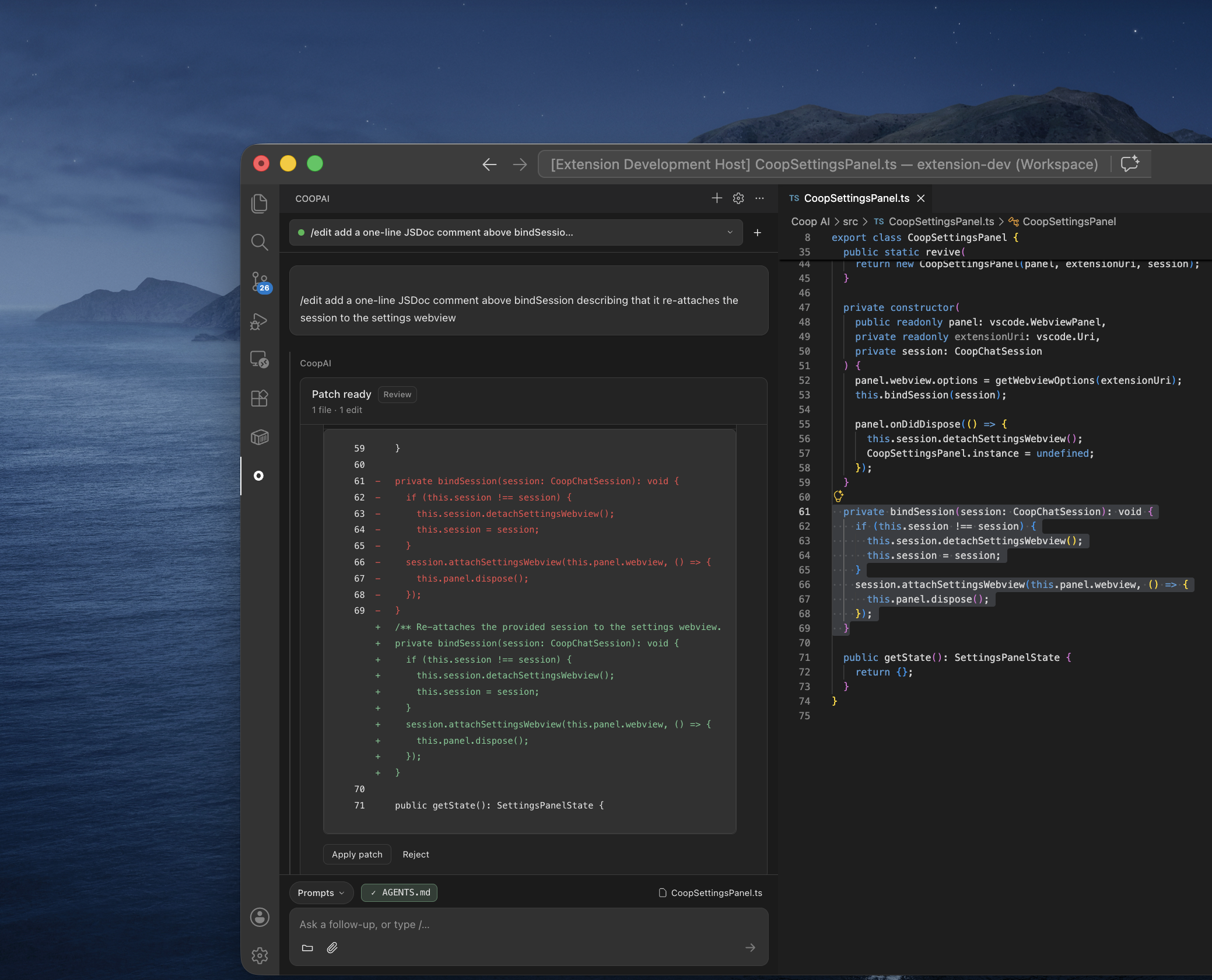
CoopAI edit mode turns natural-language instructions into search-replace patches you review and apply in VS Code. Use it when you want in-file changes without an autonomous agent rewriting your tree.
Edit mode ships in production. It uses the same chat composer as quick actions — no separate panel.
When to use edit mode
| Use edit mode | Use plain chat instead |
|---|---|
| Refactor a highlighted block | Architecture or ownership questions |
| Fix a bug in the open file | Cross-tool context (Slack, Jira) |
| Apply a localized change with review | Exploratory "what if" analysis |
Edit mode routes to the code_edit use case and expects patch blocks in the model response — not prose-only answers.
Model: On Auto, /edit, /patch, and /fix use OpenAI GPT-5.1. See Model assignments.
Slash commands
Type / in the composer to see edit commands:
| Slash | Aliases | What it does |
|---|---|---|
/edit | /patch, /fix | Generate search-replace patches for your instruction |
Examples:
/edit add null check before dereferencing user
/patch rename handleError to onRequestError in this function
/fix off-by-one in the loop bounds
All three resolve to the same edit composer mode. Text after the command is the spec — that is what pass means. Highlighting code is not enough.
Do not send fix this or bare /edit with no named change. There is nothing to score: Coop cannot know the intended bug.
Selection and file context
Coop attaches editor context automatically:
| Context | Setting | Default |
|---|---|---|
| Selected lines | coopAI.includeSelection | true |
| Active file path | coopAI.includeActiveFile | true |
Best practice: highlight the code you want changed, then run /edit <instruction> that states the defect or desired behavior. Selection focuses the model; edit mode still attaches the full active file (up to the local-file byte limit) so multi-hunk refactors can wire call sites. With no selection, Coop uses the active file and your instruction.
Workspace owner / repo / branch (Settings → Workspace) help resolve indexed-repo context when the repo is Deep-Indexed.
How it works
flowchart LR
  A["/edit instruction"] --> B[Chat streams patch]
  B --> C[Parse SEARCH/REPLACE blocks]
  C --> D["Notification: Apply"]
  D --> E[Apply to workspace]
  E --> F{User action}
  F -->|Undo| G[Restore prior content]
- Request — You send
/edit …in chat. Coop emitsedit.requestedtelemetry and streams a response using thecode_editsystem prompt. - Parse — When the response completes, the extension parses
File:headers and<<<<<<< SEARCH/>>>>>>> REPLACEhunks. - Review — A VS Code notification shows Patch ready — N file(s) (M edits) with Apply and Reject. Dismissing the notification (X) keeps the patch pending — run CoopAI: Apply Patch later.
- Apply — Click Apply or run CoopAI: Apply Patch (
coopAI.applyPatch). Changed files are written in the workspace. SEARCH blocks tolerate minor whitespace drift (indent/trim) when an exact match is not found. - Undo — After apply, the success notification includes Undo, or run CoopAI: Undo Last Patch (
coopAI.undoLastPatch). - Create a pull request — After Apply on a Use-repo file, click Create pull request on the patch card, or type Create a PR in chat. Chat also works if you typed in the file yourself (no Apply). On a local file the button stays disabled. Confirm branch, title, and notes — nothing is created on GitHub until you submit. See Create pull request.
- Retry — If apply fails, click Retry on the error notification or run CoopAI: Retry Last Patch (
coopAI.retryLastPatch). Coop re-opens the pending patch or sends a follow-up/editturn asking the model to fix SEARCH blocks.
If parsing fails, no patch is staged — check the chat response for valid patch formatting.
Patch format
The model returns one or more files with search-replace hunks:
File: src/auth/login.ts

<<<<<<< SEARCH
if (!user) {
  return null;
}
=======
if (!user) {
  throw new Error("User required");
}
>>>>>>> REPLACE
File:— Repository-relative path (backticks optional).<<<<<<< SEARCH— Exact text to find (must match the file, including indentation).=======— Separator between search and replace.>>>>>>> REPLACE— Replacement text.
Multi-file edits include multiple File: sections. Each file can have multiple hunks.
Apply and undo
Apply
| Method | Surface |
|---|---|
| Apply button | VS Code notification after patch is parsed |
| CoopAI: Apply Patch | Command Palette (coopAI.applyPatch) |
| Reject button | Notification — clears pending patch |
| CoopAI: Reject Patch | Command Palette (coopAI.rejectPatch) |
| CoopAI: Retry Last Patch | Command Palette (coopAI.retryLastPatch) — re-show pending patch or regenerate after apply failure |
Success: Notification shows Applied patch to N file(s). with an Undo action. The patch card then shows Create pull request, or type Create a PR in chat — open a pull request without leaving VS Code.
Undo
| Method | Surface |
|---|---|
| Undo button | On the apply-success notification |
| CoopAI: Undo Last Patch | Command Palette (coopAI.undoLastPatch) |
Undo restores file contents from before the last successful apply. Only the most recent apply is undoable.
Settings
| Setting | Default | Description |
|---|---|---|
coopAI.includeSelection | true | Include the current editor selection in chat context |
coopAI.includeActiveFile | true | Include the active file path in chat context |
See Extension settings for Workspace and Preferences.
Telemetry
| Event | When |
|---|---|
edit.requested | /edit, /patch, or /fix sent |
edit.patch_parsed | Valid patch blocks parsed |
edit.patch_applied | Apply succeeded |
edit.patch_undone | Undo succeeded |
edit.patch_failed | Parse, apply, or undo error |
edit.patch_rejected | User explicitly rejected the patch (Reject or CoopAI: Reject Patch) |
Org admins see edit metrics in the admin portal. Members see personal usage on My Usage.
Troubleshooting
| Problem | Fix |
|---|---|
| No Apply notification | Model response may lack valid File: + SEARCH/REPLACE blocks — rephrase or narrow the selection |
| Apply failed — search text not found | SEARCH block must match the file exactly; regenerate with the selection highlighted |
| No patch pending | Run /edit first; only one pending patch is held at a time |
| Nothing to undo | Undo only covers the last successful apply |
| Wrong file edited | Confirm selection and active file; check Workspace repo/branch |
More fixes: Troubleshooting.
Next steps
- Create pull request — open a pull request from the patch card or by asking in chat
- Inline autocomplete — ghost-text completions (off by default)
- Extension settings
- Owner's Manual — Edit selection